
Text Recognition

iPhone / iPad · iOS 15.6+

Snap a photo.Get the text.

Photograph notes, textbooks or documents and turn the text in them into text you can edit. Every result is kept in your history, ready to search later.

Download on the App StoreFree (with ads and in-app purchases)

Scan with your iPhone

Text Recognition

When it helps

What it does

  1. 01

    Shoot, crop and read

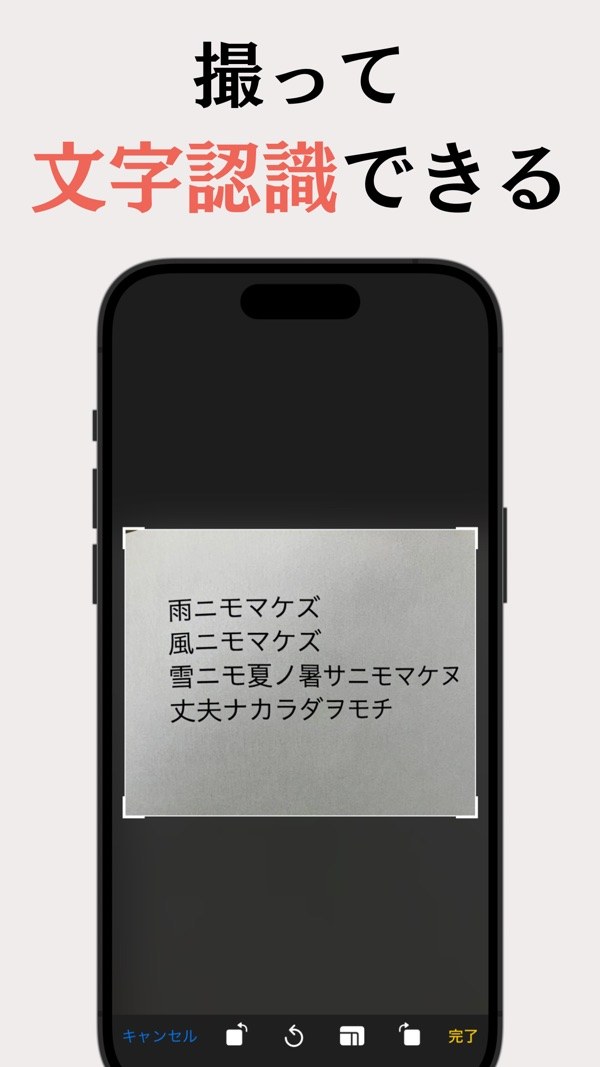
    Take a photo or choose one from your library, then crop to the area with text. Tap Done and recognition begins.

  2. 02

    Apple's text recognition

    Recognition uses Apple's Vision framework, and it works without an internet connection.

  3. 03

    Many languages

    Choose the recognition language in Settings, including English, Japanese, Chinese, Korean, French and German.

  4. 04

    Edit, copy, share, read aloud

    Both the title and the contents of a result can be edited. The menu lets you copy, share or have the text read aloud.

  5. 05

    Saved to history and searchable

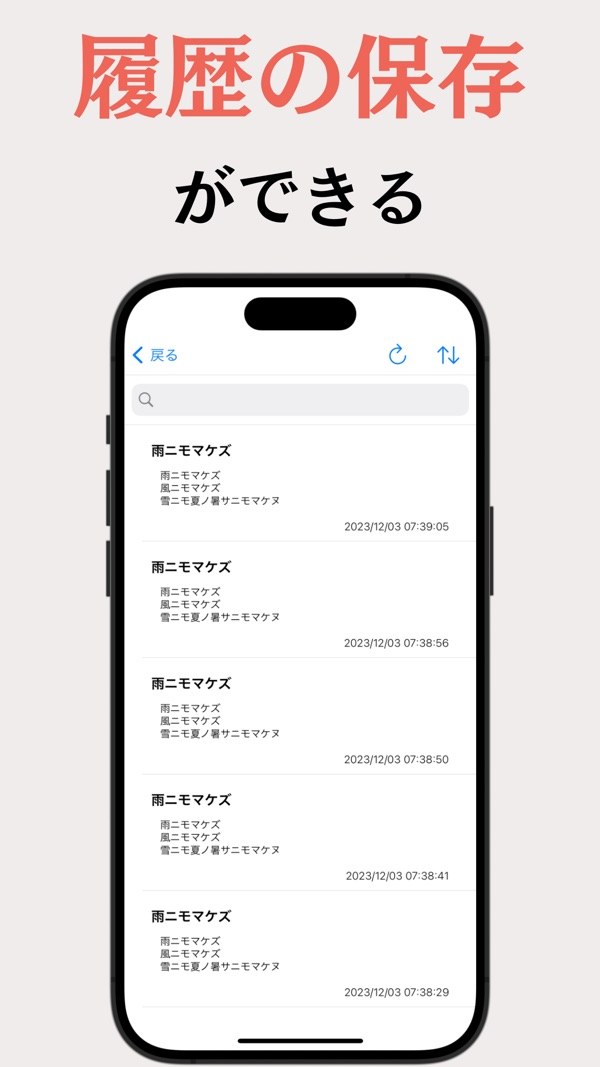
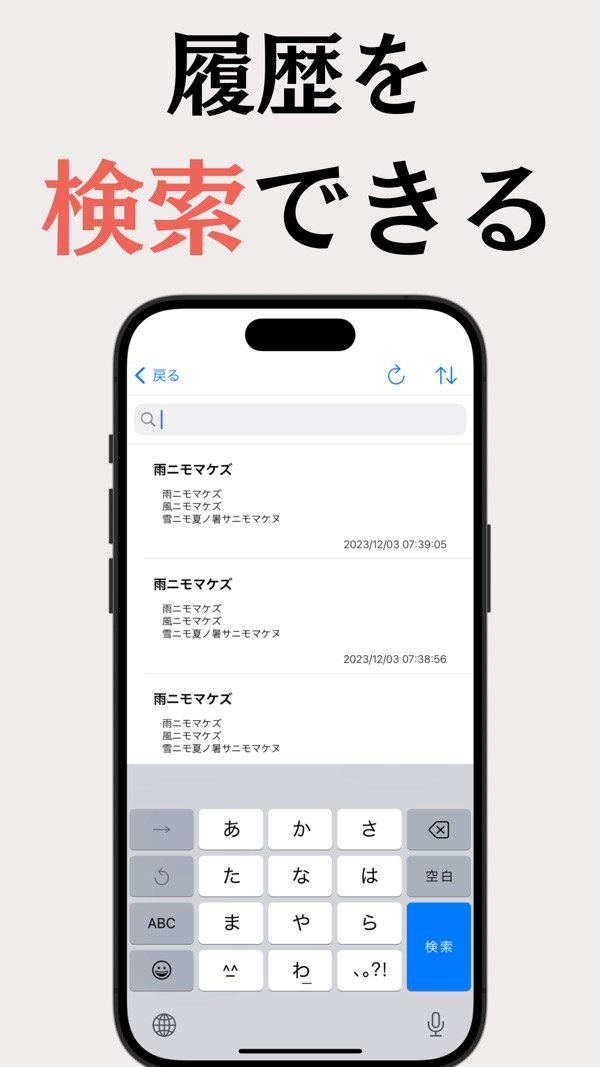
    Results are listed in Scan History with the date and time. Sort by newest, oldest or title, and narrow the list with the search field.

In detail

Shoot, crop and read
01

Shoot, crop and read

Tap Take Photo or Select Photo, then crop to the area you want read. You can rotate the image or change the aspect ratio, and tapping Done starts text recognition.

  • Take a photo or pick one
  • Crop to just the part you need
  • Choose the recognition language in Settings
Results are kept in your history
02

Results are kept in your history

Recognized text is listed in Scan History with the date and time. You can sort it by newest, oldest, or title.

  • Listed with date and time
  • Newest, oldest, title A to Z / Z to A
  • Search by title
03

Edit, copy, share and read aloud

Open an entry to edit its title and contents. The menu offers copy, share, read aloud and export. You can also switch to a view where phone numbers, links and addresses become tappable.

  • Edit title and contents
  • Copy, share, read aloud
  • Detects phone numbers, links, addresses and calendar events
04

Document Scan and Live OCR

The home screen has a Document Scan button that detects paper documents, and a Live OCR button for pointing the camera at text. Document Scan on the free plan handles one page.

  • Document Scan (1 page on the free plan)
  • Live OCR (Premium)
05

What Premium adds

The Premium subscription removes ads and adds batch reading of multiple photos (up to 20), QR and barcode scanning, tag management, full-text search and all export formats.

  • Batch reading, up to 20 photos
  • Filter by tag and date range
  • Export as text, PDF, CSV, JSON, Markdown, HTML or Word

How it works

  1. 1
    Take or choose a photo

    Take or choose a photo

    Tap Take Photo or Select Photo on the home screen. The first time, the app asks for camera or photo library access.

  2. 2
    Crop to the text

    Crop to the text

    Drag the frame over the part with text, then tap Done at the lower right to start recognition.

  3. 3
    Check and edit the result

    Check and edit the result

    The recognized text is placed in the title and contents fields. Edit it directly if needed.

  4. 4
    Find it again in History

    Find it again in History

    Open past results from Scan History. Type in the search field to narrow the list.

Screens

Crop to the text you want read
Scan history with dates and times
Search your history
Search your history

What Premium adds

  • No ads
  • Batch reading of up to 20 photos
  • QR code and barcode scanning
  • Tags and full-text search
  • Export as PDF, CSV, Word and more

FAQ

Does it work without an internet connection?

Yes. Taking a photo and recognizing its text works without an internet connection, using Apple's Vision framework. Ads (Google AdMob) and purchase management (RevenueCat) may still use the network.

Which languages can it read?

Choose one under Recognition Language in Settings. The list includes English, French, Italian, German, Spanish, Portuguese, Chinese (Simplified and Traditional), Cantonese, Korean, Japanese, Russian, Ukrainian, Thai and Vietnamese.

What if the result is wrong?

Both the title and the contents of a recognized entry can be edited on its detail screen.

Is it free?

Yes, with ads and in-app purchases. On the free plan, export is limited to text, Document Scan handles one page, and search covers titles. Premium is a subscription.

How many photos can I read at once?

Up to 20 with batch reading, which is a Premium feature. It is not available on the free plan.

Where is the recognized text stored?

Data you create in the app is stored on your device and is not sent to our servers. See the privacy policy for details.

What permissions does it need?

It may ask for camera access (to take photos), photo library access (to choose photos) and speech recognition. It may also ask for the tracking permission because of ads.

Which devices are supported?

iPhone and iPad running iOS 15.6 or later.

Try it on the page in front of you.

Download on the App Store
Text RecognitionGet